Oct 16, 2017

Install opencv package in Python

Opencv is very popular library on all platforms. This article explains how to install opencv package for Python. This will give you a general idea about installing any library in Python environment.

In code samples you will see cv2 library is imported.
import cv2
If you run sample code without installing opencv you will get following error.
Traceback (most recent call last):
  File "pythonface.py", line 2, in
    import cv2
ImportError: No module named cv2

Installing python package from online repository is very easy in python. You can search for a package in PyPI (Python Package Index) interface.

Type opencv to search box in pypi webpage (https://pypi.python.org/pypi)

This will give you a long list which contains your keyword.
List cropped for blog post.

Finding right package may be hard in this list. You can find package names from original sources of specific libraries.

If you click "opencv-python 3.3.0.10" from the list (https://pypi.python.org/pypi/opencv-python/3.3.0.10) you will see installation and usage guide.

On docs.opencv.org you can see library name as opencv-python:
OpenCV-Python is the Python API for OpenCV, combining the best qualities of the OpenCV C++ API and the Python language.
Use following command to install opencv library to your computer from PyPI.
pip install opencv-python
Now you are ready to use opencv functions.

If you can't find opencv-python package in your installation you can download source codes and run commands according to your environment. This link will give you an idea about sequence of this work.

Aug 15, 2017

Split video into frames

You can split video into frames with AForge libraries.

Add reference following libraries:
  • AForge.Video
  • AForge.Video.FFMPEG

// create instance of video reader
VideoFileReader reader = new VideoFileReader();
// open video file
reader.Open("C:\\test.mp4");
long framecount = reader.FrameCount; 

// read video frames 
for (int i = 0; i < framecount; i++)
{
 Bitmap videoFrame = reader.ReadVideoFrame();
 
 videoFrame.Save(Environment.CurrentDirectory + "\\" + i + ".bmp");

 // dispose the frame when it is no longer required
 videoFrame.Dispose();
}
reader.Close();

Quickwatch reader object
ReadVideoFrame: Read next video frame of the currently opened video file.

Jan 14, 2016

How to send an object and a parameter to an asp.net web api

In this sample we will post an object and a string parameter with ajax from client. Asp.net side will recognize data as form data. We will convert (deserialize) coming object data into corresponding class.

  • Server side: Webapi function


[HttpPost]
public string WebapiPost()
{
    var httpRequest = HttpContext.Current.Request;

    string name = httpRequest.Form["name"];
    string jsonObj = httpRequest.Form["obj"];

    JavaScriptSerializer jsonSerializer = new JavaScriptSerializer();
    MyObject obj = jsonSerializer.Deserialize<MyObject>(jsonObj);

    return obj.Key;

}

public class MyObject
{
    public int ID { get; set; }
    public string Key { get; set; }

}

  • Client side: Post function 

function PostDataSample(url, data) {
    $.ajax({
        type: "POST",
        url: url,
        data: data,
        dataType: 'html',
        success: function (response) {
            console.log("PostData::success");
            callback(response);
        },
        failure: function (response) {
            console.log("PostData::failure");
            callback(response);
        }
    });

}
Note that "dataType" is "html"

  • Client side: Call post function


var name = "Oktay";
var myObject = {};
myObject.ID = 1;
myObject.Key = "key1";

PostDataSample("/api/postMyobject/WebapiPost", "obj=" + JSON.stringify(myObject) + "&name=" + name, "html");
Note that we used object as JSON.stringify. You can add more parameters.

Dec 25, 2015

HTML5 Webcam Case: Add server certificate to trusted in Chrome

In the previous post we created a self-signed certificate on the server. But Google Chrome still shows the certificate as not trusted on the client side.
All steps will be applied at client side with Google Chrome browser.

Click the lock icon near the https url. In popup it says "Server's certificate is not trusted".

Click "Certificate Information" link and the go to "Details" tab.
 Click "Copy to File...". You will see Certificate Export Wizard window.

 Click Next and enter a path for the file including filename.
 Complete the wizard and you will see "The export was successful" message.

Go to Chrome settings and find "Manage certificates" button.
 Go to "Trusted Root Certification Authorities" tab and click "Import..." button. We will import the certificate which we exported in the previous steps.
 You will see "Certificate Import Wizard" window. Click Next and select certificate file you exported.

 Here we are adding the certificate to the "Trusted Root Certification Authorities". Complete the wizard.


You will see "The import was successful" message. Now you will not see error lock icon near the https url in Chrome. Also related with our previous post, you can save your webcam access permission for the later use. You can create an app link in Chrome and whenever app window opened webcam will be active.

Dec 15, 2015

HTML5 Webcam Case: Create a self-signed certificate

Thanks to HTML5 which gives us the opportunity to use native HTML for some features. Without Flash or Silverlight we can use webcam. The new getUserMedia() function is used for capturing and video tag for displaying webcam content. 

Target

Assume that we have a web client in a kiosk and we want to run our webpage by opening a Chrome window. Creating a shortcut is easy part but you'll see Chrome asks for permission to enable webcam each time. This is a problem because someone has to allow webcam after a restart for example.

Solution

Running your website in HTTPS environment can solve this. Then Chrome will remember your preference for that page. If you allow webcam then each time it will gives permission automatically.

Self-signed Certificate

If you don't have an authorized certificate for the HTTPS then you can create a self-signed certificate in IIS. 

You can enter big numbers for validity days like 1000 (which is 3+years) but for some security reasons Chrome will give warnings for that. In our case use smaller numbers like 365days.
Now you can see the certificate in IIS > Server Certificates section.
In IIS go to your Website > Bindings and select your certificate in HTTPS type.

Now your server is ready for HTTPS call and client can see your page's url in "https://your-server-name/..." format.

But still not finished. Chrome will say it the certificate is not verified. This is a self-signed certificate and we need to add it to Trusted Certificates in client side. See the next post 

Nov 27, 2015

Performance Counters on ASP.NET

If you want to use performance counters on your ASP.NET page you can use  System.Diagnostics.PerformanceCounter class. Example below shows running inside a generic handler.


static System.Diagnostics.PerformanceCounter cpuUsage;

public void ProcessRequest(HttpContext context)
{
    context.Response.ContentType = "text/plain";
    if (cpuUsage == null)
    {
        cpuUsage = new System.Diagnostics.PerformanceCounter();
        cpuUsage.CategoryName = "Processor";
        cpuUsage.CounterName = "% Processor Time";
        cpuUsage.InstanceName = "_Total";
    }

    context.Response.Write(cpuUsage.NextValue());
}


When you test in Visual Studio you will see you can get CPU usage for every call (except first call, it is 0 for the first time). But when you deploy your code to the server probably you will see the error below.
Access to the registry key 'Global' is denied. Description: An unhandled exception occurred during the execution of the current web request. Please review the stack trace for more information about the error and where it originated in the code. Exception Details: System.UnauthorizedAccessException: Access to the registry key 'Global' is denied.
To solve this problem;

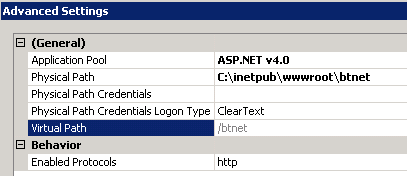
1. Check your application pool from the IIS website settings (basic or advance).


2. Go to "Application Pools" section. Right click and select "Advanced Settings".


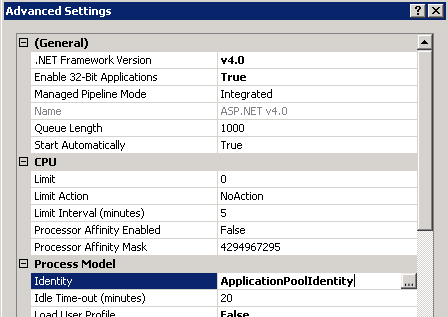
3. Find "Identity".


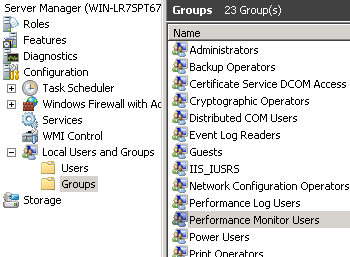
4. Go to "Server Manager" > "Local Users and Groups" > "Groups". On the right pane right click to "Performance Monitor Users" > Properties.


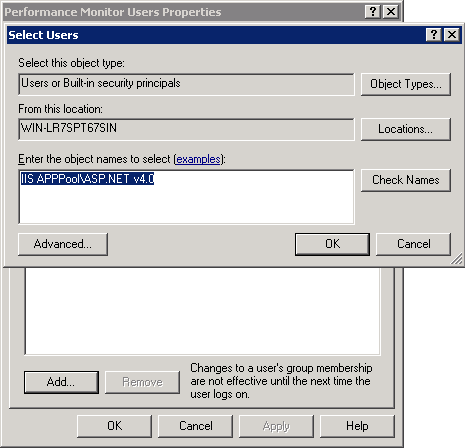
5. Add user you saw in the 3rd step (Identity). If you saw "ApplicationPoolIdentity" in the "Identity" then type "IIS APPPool\[Pool name]". In our example pool name is "ASP.NET v4.0".


6. Restart IIS. Now you should see the performance counter page without error.

Feb 5, 2015

Query samples on a self referenced table (Part-4)

In previous post we joined tables but there was a problem. We can not see "Help" menu which has not any sub menu. To solve the problem we will use Outer Join.

Linq

var menus = from t in Menus
  where t.MenuType==1
  join s in Menus on t.MenuID equals s.MenuParent into Subs
  from ss in Subs.DefaultIfEmpty()
  select new {
   TopMenu = t.Title,
   SubMenu = ss == null ? null : ss.Title
  };

Lambda

Menus
   .Where (t => (t.MenuType == 1))
   .GroupJoin (
      Menus, 
      t => (t.MenuID), 
      s => s.MenuParent, 
      (t, Subs) => 
         new  
         {
            t = t, 
            Subs = Subs
         }
   )
   .SelectMany (
      temp0 => temp0.Subs.DefaultIfEmpty (), 
      (temp0, ss) => 
         new  
         {
            TopMenu = temp0.t.Title, 
            SubMenu = (ss == null) ? null : ss.Title
         }
   )

SQL

DECLARE @p0 Int = 1

SELECT [t0].[Title] AS [TopMenu], 
    (CASE 
        WHEN [t2].[test] IS NULL THEN NULL
        ELSE CONVERT(NVarChar(MAX),[t2].[Title])
     END) AS [SubMenu]
FROM [Menu] AS [t0]
LEFT OUTER JOIN (
    SELECT 1 AS [test], [t1].[Title], [t1].[MenuParent]
    FROM [Menu] AS [t1]
    ) AS [t2] ON ([t0].[MenuID]) = [t2].[MenuParent]
WHERE [t0].[MenuType] = @p0

Jan 23, 2015

Query samples on a self referenced table (Part-3)

In previous post we queried tables.
In this post we will join the tables. This will show Top Menu title and Sub Menu title in a row.

Linq

var menus = from t in Menus
  where t.MenuType == 1
  join s in Menus on t.MenuID equals s.MenuParent
  select new {
   TopMenu = t.Title,
   SubMenu = s.Title
  };

Lambda

Menus
   .Where (t => (t.MenuType == 1))
   .Join (
      Menus, 
      t => (Int32?)(t.MenuID), 
      s => s.MenuParent, 
      (t, s) => 
         new  
         {
            TopMenu = t.Title, 
            SubMenu = s.Title
         }
   )

SQL

DECLARE @p0 Int = 1

SELECT [t0].[Title] AS [TopMenu], [t1].[Title] AS [SubMenu]
FROM [Menu] AS [t0]
INNER JOIN [Menu] AS [t1] ON ([t0].[MenuID]) = [t1].[MenuParent]
WHERE [t0].[MenuType] = @p0

Jan 13, 2015

Query samples on a self referenced table (Part-2)

In previous post we created a database table, filled it with sample data and saw some basic queries.
In this post we will query the table in { Menu.Title, IEnumerable<menu> } form. This will show Top menu title and sub menu items in a row.

Linq

var menus = from t in Menus 
 where t.MenuType==1 
 select new {
  t.Title,
  SubMenus = from s in Menus
  where t.MenuType==1 && t.MenuID==s.MenuParent
  select s
 };

Lambda

Menus
   .Where (t => (t.MenuType == 1))
   .Select (
      t => 
         new  
         {
            Title = t.Title, 
            SubMenus = Menus
               .Where (s => ((t.MenuType == 1) && ((Int32?)(t.MenuID) == s.MenuParent)))
         }
   )

SQL

DECLARE @p0 Int = 1
DECLARE @p1 Int = 1

SELECT [t0].[Title], [t1].[MenuID], [t1].[Title] AS [Title2], [t1].[Url], [t1].[MenuParent], [t1].[MenuType], (
    SELECT COUNT(*)
    FROM [Menu] AS [t2]
    WHERE ([t0].[MenuType] = @p0) AND (([t0].[MenuID]) = [t2].[MenuParent])
    ) AS [value]
FROM [Menu] AS [t0]
LEFT OUTER JOIN [Menu] AS [t1] ON ([t0].[MenuType] = @p0) AND (([t0].[MenuID]) = [t1].[MenuParent])
WHERE [t0].[MenuType] = @p1


Jan 11, 2015

Query samples on a self referenced table (Part-1)

I will give you some query examples in Linq, Lambda Expression and SQL syntax.
Examples are build on one table that includes self referenced data. We will create a menu table on the database and fill it with some sample data. Some menu items are top menus and the others are subs. Sub menu items has a parent id which is referenced another menu item on the same table.

Step 1: Create menu table on SQL Server.
CREATE TABLE [dbo].Menu(
 [MenuID] [int] IDENTITY(1,1) NOT NULL,
 [Title] [nvarchar](50) NULL,
 [Url] [nvarchar](100) NULL,
 [MenuParent] [int] NULL, --If has parent fill this column with MenuID 
 [MenuType] [int] NULL --1: Top menu, 2:Sub menu
)

Step 2: Insert some data
INSERT INTO [dbo].[Menu] ([Title], [Url], [MenuParent], [MenuType]) VALUES ('Accounts', '.aspx', 0, 1) --ID=1

INSERT INTO [dbo].[Menu] ([Title], [Url], [MenuParent], [MenuType]) VALUES ('Users', '.aspx', 1, 2) --ID=2

INSERT INTO [dbo].[Menu] ([Title], [Url], [MenuParent], [MenuType]) VALUES ('Customers', '.aspx', 1, 2) --ID=3

INSERT INTO [dbo].[Menu] ([Title], [Url], [MenuParent], [MenuType]) VALUES ('Settings', '.aspx', 0, 1) --ID=4

INSERT INTO [dbo].[Menu] ([Title], [Url], [MenuParent], [MenuType]) VALUES ('App', '.aspx', 4, 2) --ID=5

INSERT INTO [dbo].[Menu] ([Title], [Url], [MenuParent], [MenuType]) VALUES ('Web', '.aspx', 4, 2) --ID=6

INSERT INTO [dbo].[Menu] ([Title], [Url], [MenuParent], [MenuType]) VALUES ('Service', '.aspx', 4, 2) --ID=7

INSERT INTO [dbo].[Menu] ([Title], [Url], [MenuParent], [MenuType]) VALUES ('Parameters', '.aspx', 0, 1) --ID=8

INSERT INTO [dbo].[Menu] ([Title], [Url], [MenuParent], [MenuType]) VALUES ('Account Type', '.aspx', 8, 2) --ID=9

INSERT INTO [dbo].[Menu] ([Title], [Url], [MenuParent], [MenuType]) VALUES ('Help', '.aspx', 0, 1) --ID=10

Step 3: Query table. In this example we will see some basic queries.

Basic Queries

Queries below selects top menus and sub menus.

Linq

var topMenus = from f in Menus where f.MenuType==1 select f;
var subMenus = from f in Menus where f.MenuType==2 select f;

Lambda

Menus
   .Where (f => (f.MenuType == 1))

Menus
   .Where (f => (f.MenuType == 2))

SQL

DECLARE @p0 Int = 1
SELECT [t0].[MenuID], [t0].[Title], [t0].[Url], [t0].[MenuParent], [t0].[MenuType]
FROM [Menu] AS [t0]
WHERE [t0].[MenuType] = @p0
GO

DECLARE @p1 Int = 2
SELECT [t0].[MenuID], [t0].[Title], [t0].[Url], [t0].[MenuParent], [t0].[MenuType]
FROM [Menu] AS [t0]
WHERE [t0].[MenuType] = @p1
GO

See Part-2 for the other queries.